How do I make a lookbook with AI?
Updated on November 9, 2026
What you need
- The looks. Pictures or clips already in your studio: products on AI models made with Product to Model, try-ons, editorial shots, short videos. Nothing has to be uploaded again.
- A computer. The Lookbook is composed on a wide screen. On a phone, the published book reads perfectly, one page at a time.
- No plan to start. Every account can build two lookbooks and put them online for free. Building a book costs no credits; only the looks you generate do.
Step by step
- 1.Generate your looks in the Studio. Product to Model puts a flat lay or a packshot on a model in the pose and place you describe.
- 2.Open Lookbook and press New lookbook.
- 3.Type the Lookbook name and pick a Page format: Portrait, Landscape or Square. Every page of the book shares it.
- 4.Under Images and videos, press Select from Studio and choose your looks in the order you want them read. The first one is the cover.
- 5.Press Build the lookbook. The book is proposed in full: a cover, an opening page, the looks in rhythm, a double page and the credits.
- 6.Click any page to change its layout, its pictures or its words, and drag a page onto another to move it.
- 7.Press Preview to turn the pages as a reader will, then press Publish.
- 8.Press Online, then Copy, and send the link to a buyer, the press or your customers.
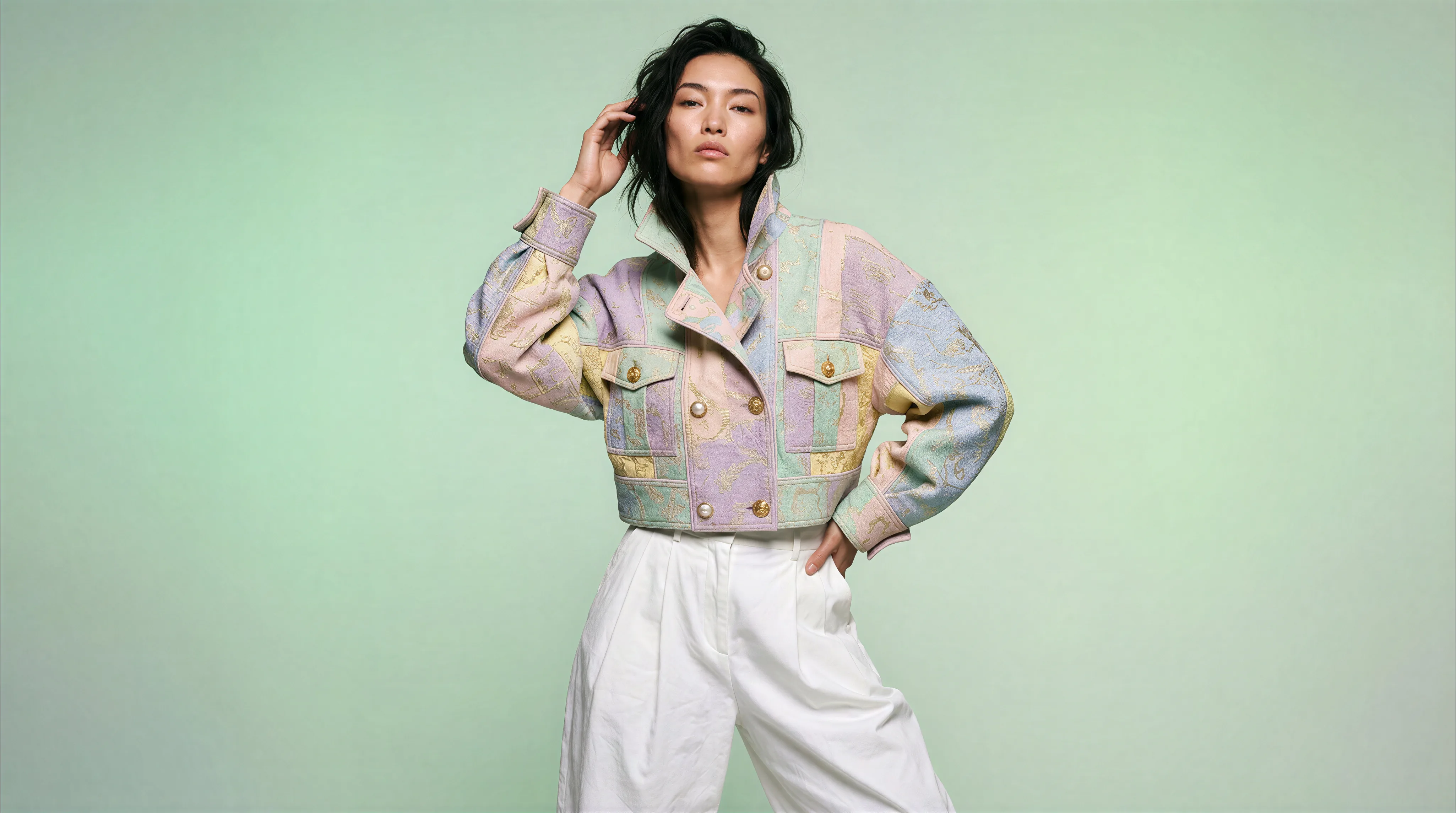
What the Lookbook lays out
Each page takes one of eight layouts. Cover holds one picture, the name and a line above it. Opening holds a title and a few lines on the collection. Full page shows one look edge to edge, Framed shows one look in white space with the pieces written below, Diptych puts two pictures side by side, Triptych shows the front, the back and a detail, and Double page spreads one picture across both pages. Credits closes the book with photography, styling and contacts.
The looks are numbered for you, Look 01, Look 02, and each page lets you show or hide its number. Videos play on the page like pictures.
Change a page
Click a page and the panel on the right offers:
- The layout, from the eight above.
- Image or video: click inside the picture to choose the point that stays in frame, or press Change to pick another from the studio.
- Words: the title, the line above it, the text, or the caption with the pieces worn.
- Logo on the cover: press Use my brand logo to take the one saved in your brand kit.
- Links: press Add link to point the page to a Shopify product or an external address, up to three per page.
Use Earlier and Later to move the selected page, Add page to insert a blank one, and Add from Studio, with no page selected, to bring more looks into the book.
The look of the whole book
The bar at the top sets what every page shares. Font offers Jost, Switzer, Bodoni, Playfair, Garamond and Grotesk. Paper sets the colour of the pages, with your brand colours offered first; the words follow its lightness. The format button switches the whole book between Portrait, Landscape and Square, and every picture keeps its framing point.
How to share it
Publish puts the lookbook online at lookbook.thenewblack.ai, under its own short address. The button then reads Online and opens Share your lookbook: Copy takes the link, Open shows it as your readers see it, and Take offline removes it whenever you like. The address never changes, so a link you already sent shows every edit you make afterwards.
Readers turn the pages like a printed book on a computer, and swipe them one by one on a phone.
What exports and what does not
- A link: yes, the way a lookbook is meant to travel. Put it in your store menu, your bio, an email or a message to a buyer.
- A PDF: no. The Lookbook has no PDF or image download. If you need a one page PDF, compose a board in Canvas, which exports to PDF, PNG and JPG.
- The pictures themselves: every look stays in your studio, where each image or video downloads on its own.
Good to know
- Free and with a plan. Two lookbooks are free to build and publish, with a small mark of ours on the last page. Every plan makes lookbooks unlimited, removes that mark, opens the links to your products and lets you publish at your own domain, such as lookbook.yourbrand.com, with Connect your domain.
- Your team. File the lookbook in a project from the menu on its name: the members of that project can open and read it. See how to invite your team.
- Your AI fashion agent can build a lookbook from your creations, change its pages and publish it, when you ask it in the chat.