How do I keep the same model across a whole collection?
Updated on November 3, 2026
What you need
- One reference image of your model. A clear, front facing photo, face and body well lit, in plain or fitted clothes. It can be a model you generated, a face from the Models presets, or a real person whose image rights you hold.
- The products of the collection, each photographed alone: flat lay, hanger, ghost mannequin or packshot, in JPG, PNG or WebP up to 20 MB.
- A short set of fixed choices you will repeat on every product: the Framing, the Angle, the Scene and a line of pose. Writing them down once saves you from drifting.
Step by step
- 1.Create or choose your model once: generate one with Product to Model, or pick a face from the Models presets.
- 2.Open Product to Model, press Workflows if needed, and in the Model section switch to Image.
- 3.Click the slot and choose your model's image from your studio.
- 4.In Products, upload the next piece of the collection, keep the same Framing and Scene, and press Generate.
- 5.Repeat for each product, or open bulk generation to send up to 30 product photos with the same model image in one go.
- 6.To keep the light and mood identical too, turn on your Visual style in the panel before you generate.
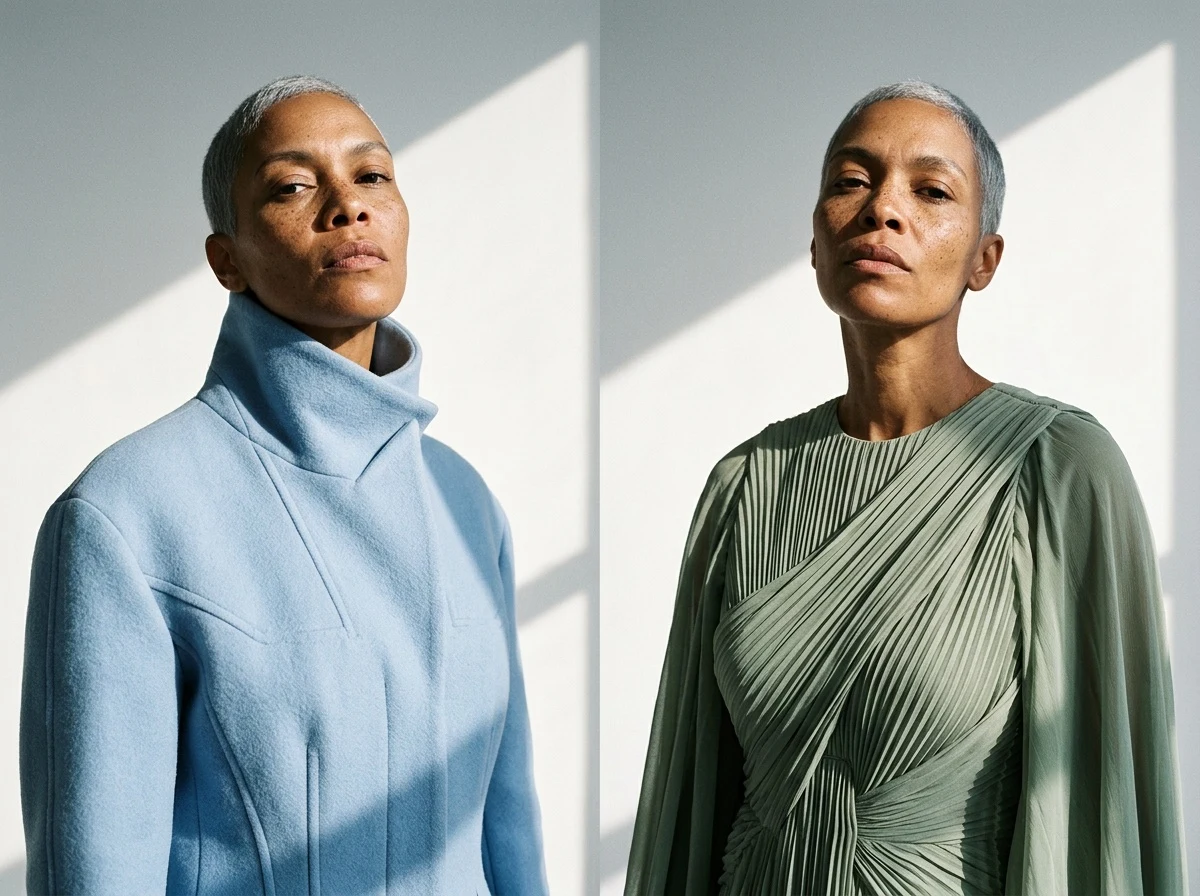
Why an image and not a description
Two runs of the same words give two different people. An image in the Model slot is read as the person to dress, so the face, the hair and the body stay the same from one product to the next. There is nothing to train: the image is the model, and you can change it any time.
Model (Image)
The slot that holds your reference. In Product to Model it is optional and switched on with Image; in Virtual Try-On it is required. Always use the same file, not a new take of the person, because each take differs slightly.
Modify physical features & pose
With a model image, this box changes the pose or a detail while keeping the person: « Chin up. One hand on the hip. » Keep the same sentence across the collection so the series reads as one shoot, and change it only for a deliberate variation such as a back view.
Framing, Angle and Scene
Keep them identical across the collection: the same Framing (Full body for a lookbook, Upper body for tops), the same Angle, the same Scene. When only the garment changes, the eye reads the collection, not the differences.
Visual style
Visual style applies a saved style, its light, colours and mood, to every image. Choose it once in the panel, from Templates or My styles, and leave it on. It is what makes images made on different days look like one shoot. It needs a plan.
Standard, Pro or Ultra
Pro and Ultra hold a face best. Standard costs 1 credit an image, Pro 3 and Ultra 7. Pro needs a plan; Ultra and 4K need the Pro plan. Keep the same quality across the collection: mixing tiers changes the sharpness from one image to the next.
Bulk generation
Bulk generation sends many product photos with the same model image, Framing and Scene in one go: up to 30 on the Pro plan, 50 on Business and 100 on Enterprise. It is the fastest way to dress a whole collection on one person.
Good to know
- A face that drifted a little? Face Swap puts your model's exact face back on a finished image, for 1 credit.
- A photo that already exists with the wrong person? Swap Model replaces the model and keeps the outfit.
- Several models for one brand stay consistent the same way: one reference image each, kept in a project the team shares.
- Starting from scratch? See how to create an AI fashion model for your store.