How do I show clothing laid flat with AI?
Updated on November 9, 2026
- 1.Open the Studio, press Workflows and choose Image to Flat Lay in the E-commerce family.
- 2.In Product image, upload the photo that shows your piece.
- 3.In Product to recreate, name the piece, for example The cropped denim jacket.
- 4.Choose a Format, such as 1:1 or 3:4 for a product page.
- 5.Choose Standard, Pro or Ultra and press Generate. The price is written on the button.
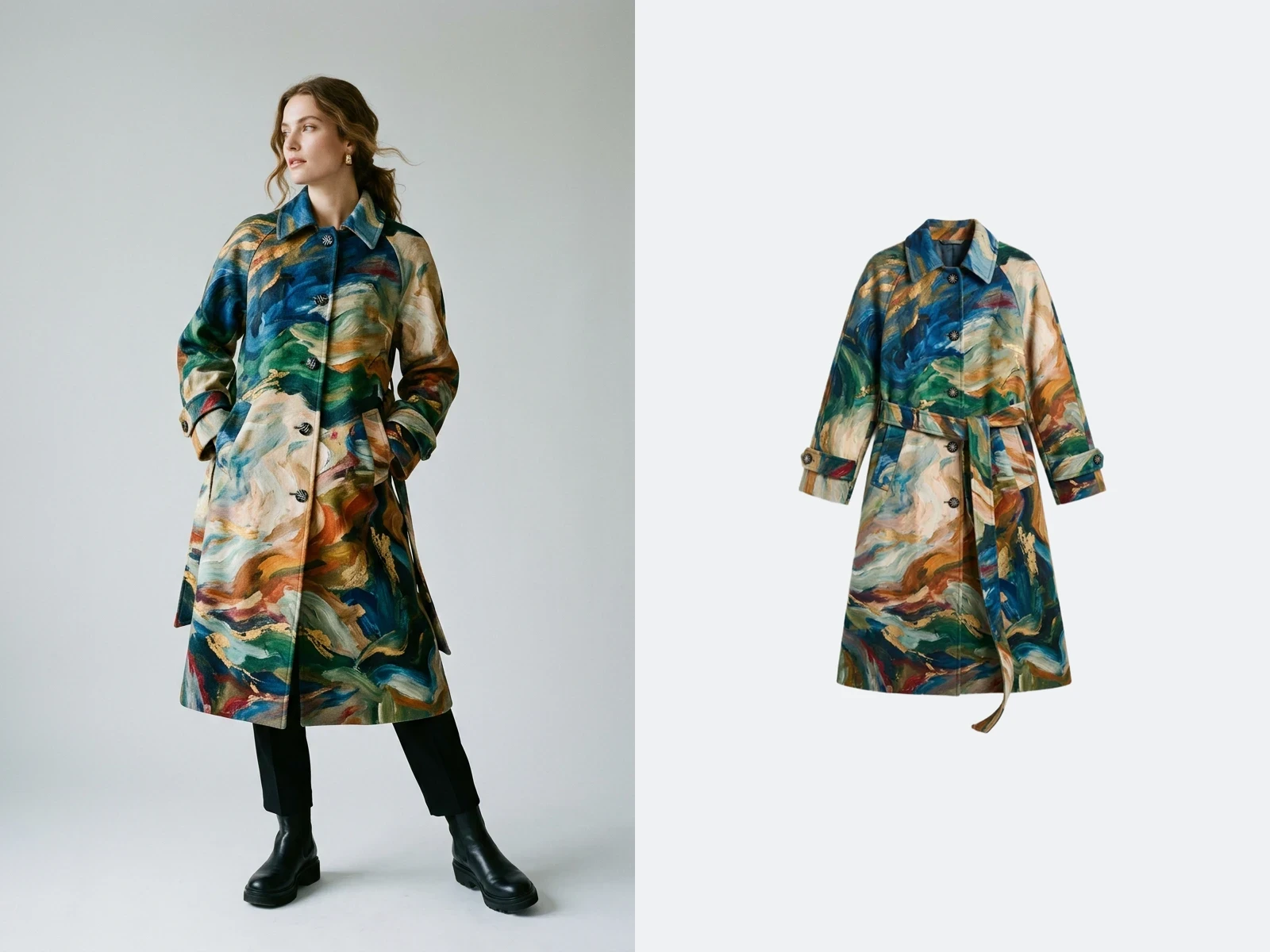
The photo you start from
Image to Flat Lay reads the piece, not the way it was photographed. It works from:
- A model photo, from a shoot or made in the Studio. The workflow lifts the garment off the person.
- A hanger shot or a packshot, to get a cleaner, squarer flat lay.
- A street or phone photo, as long as the piece is sharp and fully visible.
- A file the studio accepts: JPG, PNG or WebP, up to 20 MB.
The workflow rebuilds what it cannot see, so the more of the piece is in frame, the closer the result: collar, hem, both sleeves, the closure. A piece hidden by an arm, folded in on itself or cut by the frame has to be guessed. Advice on the photo is in What kind of photo should I upload?
Product to recreate
The one field to fill, and it is required. When the photo shows several pieces, it says which one to lay flat: « the denim jacket », « the scarf », « the pleated skirt ». Name the piece as a customer would, with what makes it yours if needed: « the cream cable knit cardigan with wooden buttons ». It also works for an accessory, such as a bag.
Format
The shape of the image: 1:1, 9:16, 2:3, 3:4, 3:2 or 4:3. A square or a 3:4 suits most product pages; 9:16 suits a story.
Standard, Pro or Ultra
Standard makes a 1K image for 1 credit, fast enough to try a few takes. Pro makes a 2K image for 3 credits and needs a plan. Ultra makes a 4K image for 7 credits and needs the Pro plan. To make a flat lay you already have bigger, use Enhance Photo to HD (2K/4K) instead of generating it again.
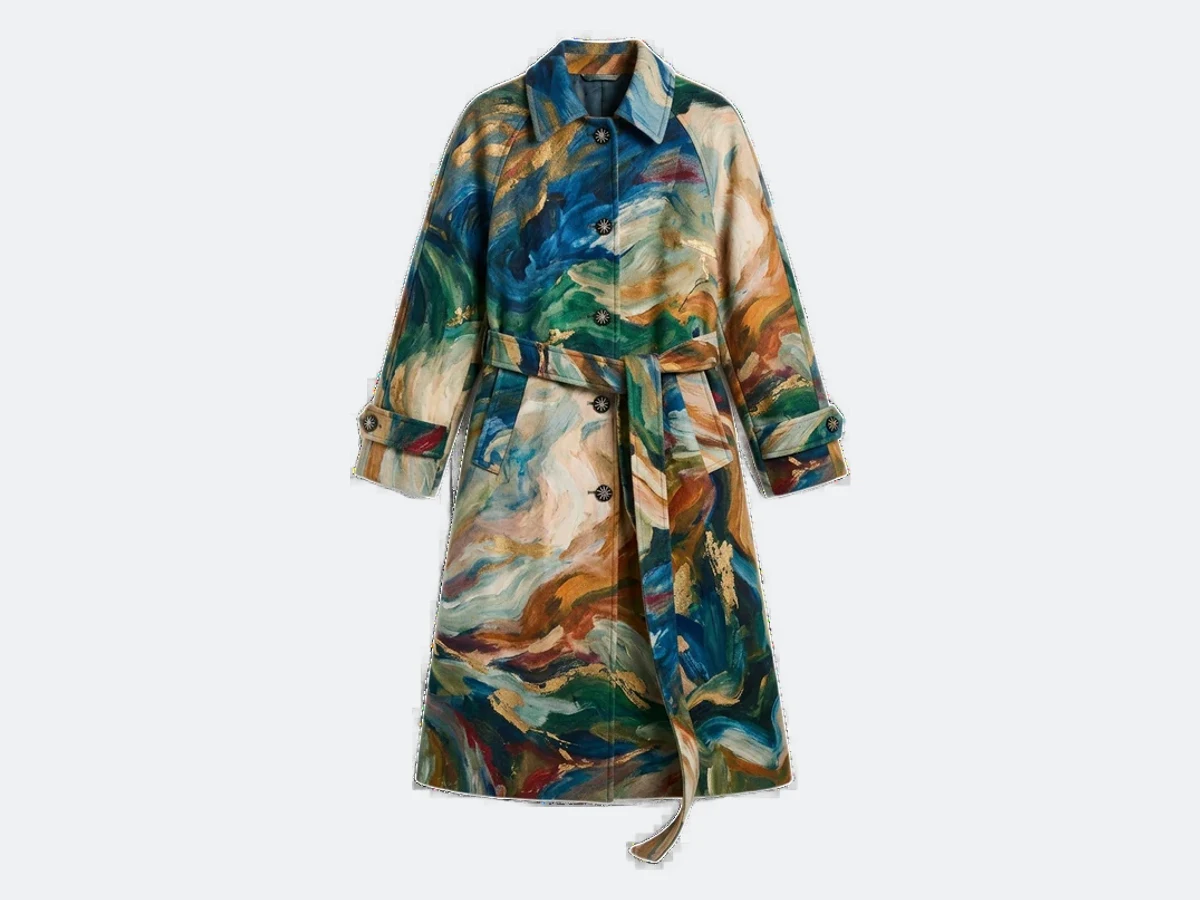
Flat lay or ghost mannequin?
Both show the garment with no person. A flat lay lays it out on a surface, seen from above: the look of a catalogue grid, a line sheet or a social post. A ghost mannequin shows it hollow, holding the shape of a body, which shows the fit and the volume better. Many stores use one or the other across the whole catalogue. The ghost mannequin has its own article: How do I create a ghost mannequin image?
Good to know
- Check the details against the real piece: buttons, pockets, the print and the label. Press Generate again for a new take if something is off.
- Many pieces at once: from the Pro plan, bulk generation runs Image to Flat Lay on up to 30 photos per batch, with the product to recreate written once for the batch.
- The way back: to put a flat lay on a model, use Product to Model, as described in How do I turn a flat lay photo into an on-model image?
- On your store: open the image, press Publish and choose Shopify to add it to the product page.